

Enable history sync for apps built with XMTP
Enable the history sync feature to give your users a way to sync an archive (decrypted historical data) from an existing app installation to a new app installation.
This historical data includes:
- Conversations
- Conversation messages
- Consent state
- HMAC keys (for push notifications)
History sync enables your users pick up conversations where they left off, regardless of the app installation they use. All they need is a pre-existing and online app installation to provide the archive.
Enable history sync
History sync is enabled by default. When creating a client, the history sync server URL is automatically set based on your env client option setting.
- When
envis set todev, the server URL ishttps://message-history.dev.ephemera.network/ - When
envis set toproduction, the server URL ishttps://message-history.production.ephemera.network
These default servers are managed and operated by XMTP Labs, a steward of the development and adoption of XMTP.
You can choose to run your own server. All SDKs accept a serverUrl parameter on sendSyncRequest() and sendSyncArchive() to specify a custom server per call. Additionally, Browser, Node, Kotlin, and Swift SDKs let you set historySyncUrl in your client options to override the default server for all sync operations.
To disable history sync:
- Browser and Node: Set
disableDeviceSync: truein your client options. - React Native: Set
deviceSyncEnabled: falsein your client options. - Kotlin and Swift: Set
historySyncUrlto an empty string in your client options.
How history sync works
When you send a sync request (via sendSyncRequest()), the receiving installation creates an encrypted archive.
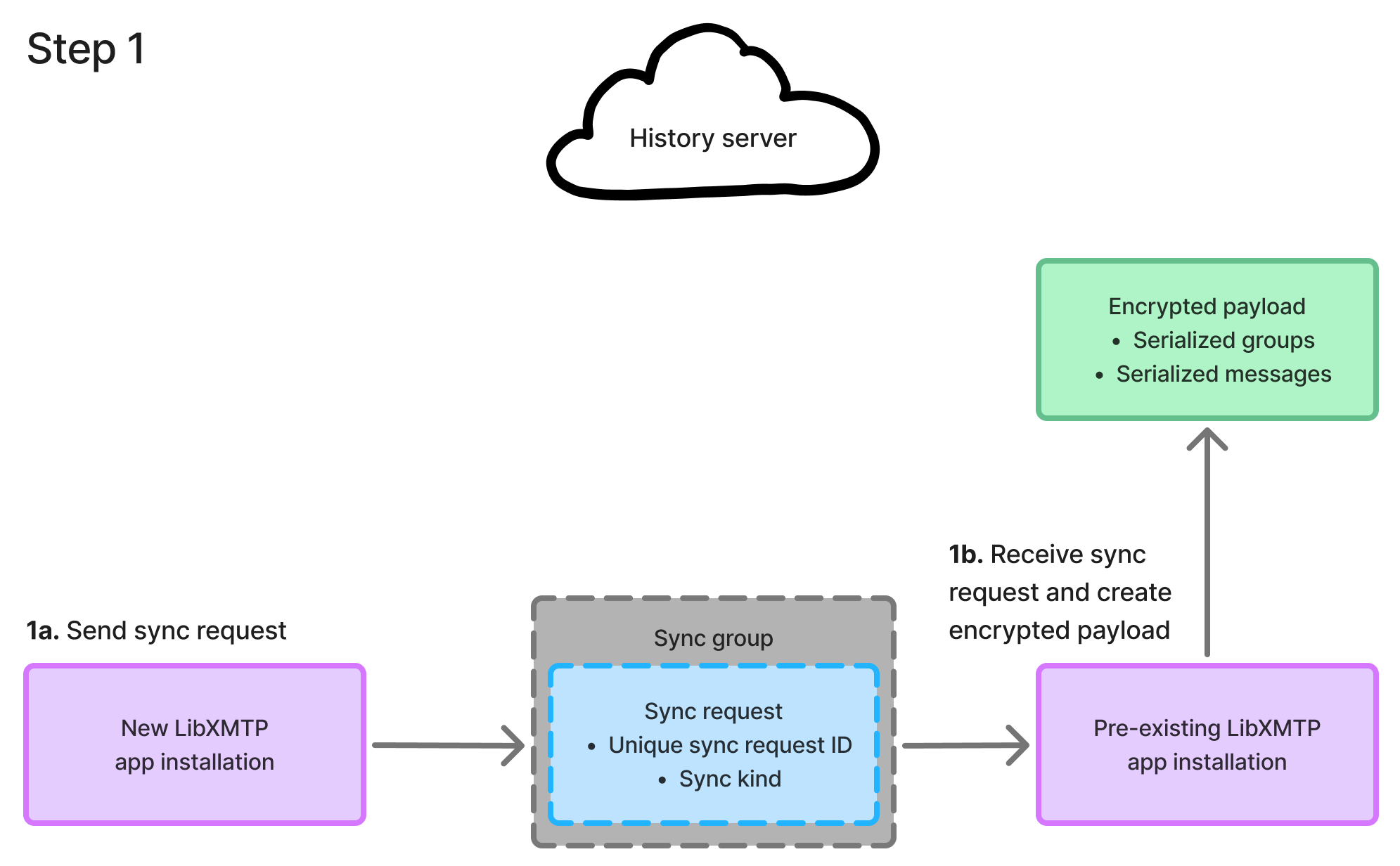
History sync then uploads the archive, sends a sync reply, and pulls all conversation state history into the new app installation, merging it with the existing app installations in the sync group.
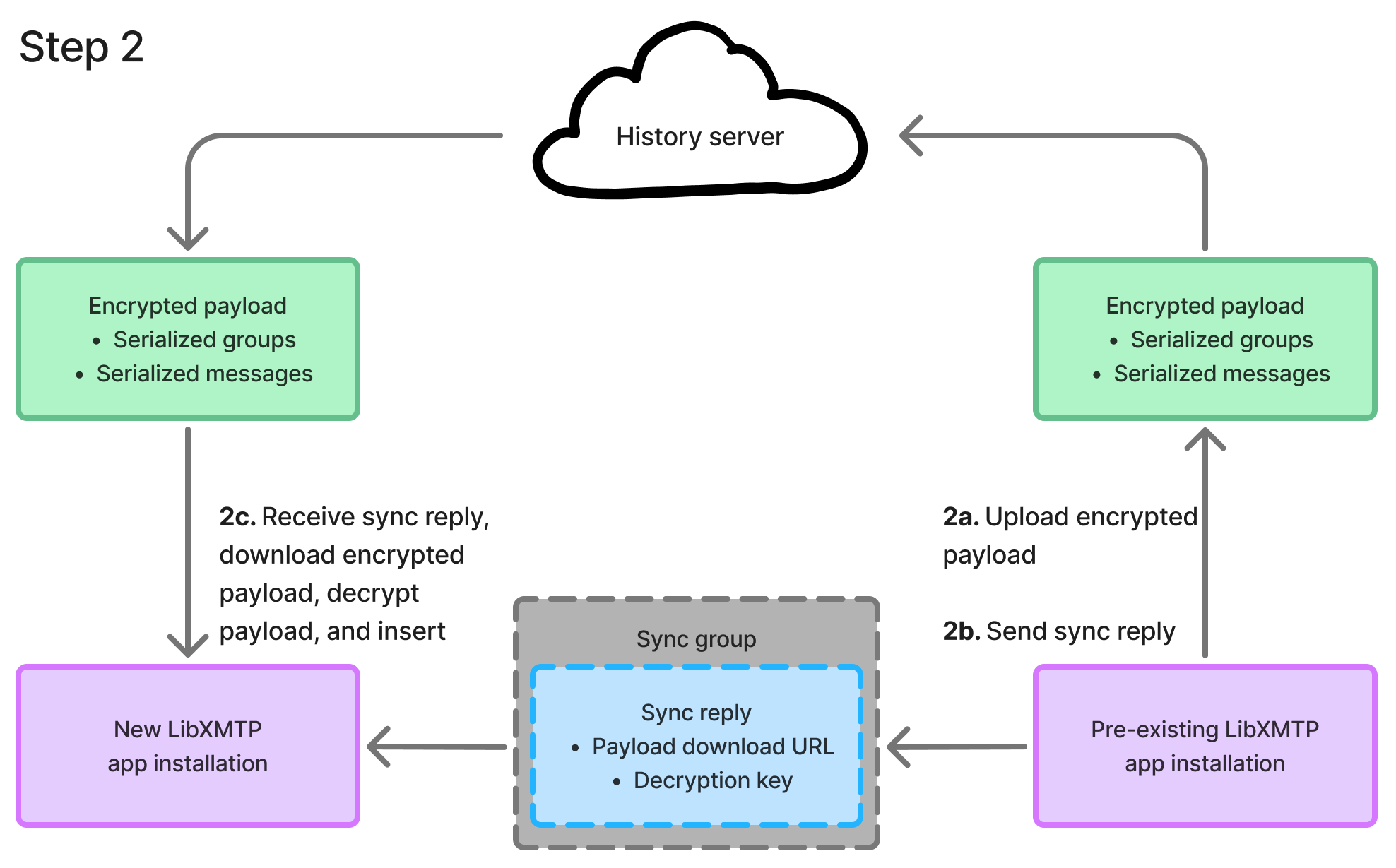
Ongoing updates to history are streamed automatically. Updates, whether for user consent preferences or messages, are sent across the sync group, ensuring all app installations have up-to-date information.
History syncs are accomplished using these components:
- Sync group
- Sync worker
- History server
Sync group
A sync group is a special Messaging Layer Security group that includes all of the user's devices. The sync group is used to send serialized sync messages across the user's devices. The sync group is filtered out of most queries by default so they don't appear in the user's inbox.
Sync worker
A sync worker is a spawned background worker that listens for sync events, and processes them accordingly. This worker:
- Emits and updates consent
- Creates and consumes archives for and from other devices
- Keeps preferences synced across devices
History server
A history server acts as a bucket that holds encrypted sync archives. The URL location of these archives and the password (cipher encryption key) to decrypt these archives is sent over the sync group for the recipient to decrypt.
Control history sync
Use these methods to manage the sync flow.
Archive options
The following methods accept an optional options parameter that controls what data is included in the sync archive:
| Option | Default | Description |
|---|---|---|
startNs | nil/null | Start timestamp in nanoseconds to filter the archive to a time range |
endNs | nil/null | End timestamp in nanoseconds to filter the archive to a time range |
archiveElements | [messages, consent] | What to include in the archive: messages, consent, or both |
excludeDisappearingMessages | false | Whether to exclude disappearing messages from the archive |
Calling these methods without the options parameter includes all messages and consent data.
Send a sync request
Send a request to other installations to sync conversations and messages to the current installation. Call this after creating a client on a new installation to pull in historical data.
// With default options
await client.sendSyncRequest();
// With custom options
await client.sendSyncRequest(
{ archiveElements: ["consent"] }, // options
"https://your-history-sync-server.example.com/" // serverUrl
);Send a sync archive
Send an archive to the sync group without waiting for a request from another installation. The pin is used as a reference when importing the archive on another installation.
// With default options
await client.sendSyncArchive("my-pin");
// With custom options
await client.sendSyncArchive(
"my-pin", // pin
{ archiveElements: ["consent"] }, // options
"https://your-history-sync-server.example.com/" // serverUrl
);Sync device sync groups
Sync all device sync groups from the network.
const summary = await client.syncAllDeviceSyncGroups();List available archives
Get a list of archives available for import from the sync group. This method reads from the local database only and does not sync from the network. If you believe your data may be out of date, call syncAllDeviceSyncGroups() first to pull the latest state.
// List archives from the last 30 days
const archives = await client.listAvailableArchives(BigInt(30));Each archive is returned as an AvailableArchive object:
pin: A unique identifier for the archive, used when processing it withprocessSyncArchive()metadata: Optional JSON-encoded metadata about the archive contents, including start/end timestamps and elements includedsentByInstallation: Optional base64-encoded installation ID indicating which device created the archive
interface AvailableArchive {
pin: string;
metadata?: string;
sentByInstallation?: string;
}Process a sync archive
Process an available archive from the sync group. If no pin is provided, it processes the last archive sent.
// Process a specific archive by pin
await client.processSyncArchive("my-pin");
// Process the last archive sent
await client.processSyncArchive();FAQ
A user logged into a new app installation and doesn't see their conversations. What's going on?
Ensure that you've called sendSyncRequest() after creating the client on the new installation, and that a pre-existing app installation is online to receive and respond to the request.
A user logged into a new app installation and sees their conversations, but no messages. What's going on?
Ensure that you've initiated a call to sync messages and that the pre-existing app installation is online to receive the sync request, process and encrypt the archive, upload it to the history server, and send a sync reply message to the new app installation.
I called a sync method (messages, consent state, or conversations), but nothing is happening. What's going on?
After calling sendSyncRequest(), ensure that the pre-existing app installation is online to receive the sync request, process and encrypt the archive, and send a sync reply.